

Project
The shared folder for one object: passport, schemes, specification, quotes, team, and history.
Projects is a working folder for one object. Build the equipment list, place it on a plan when needed, review the specification, and create a quote.
You do not have to start with a scheme. Create a project first, then choose the convenient path: a scheme for a plan or a specification for an equipment list.
Each step produces a clear next result inside the project.
The tabs are connected, but each one has a different job.
The shared folder for one object: passport, schemes, specification, quotes, team, and history.
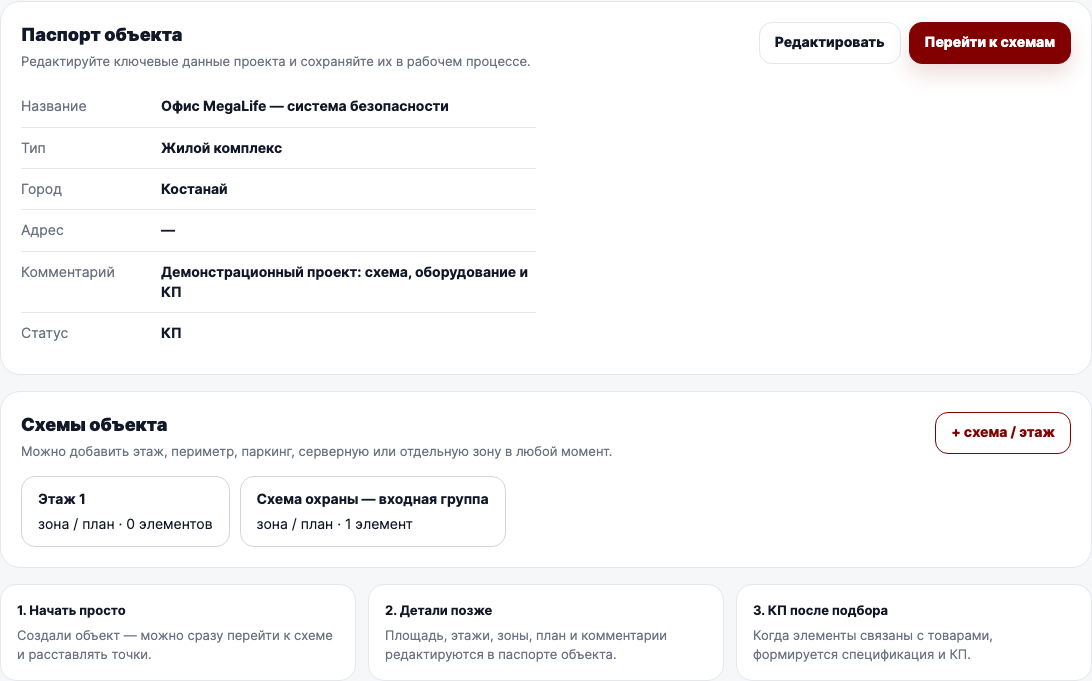
The object passport: name, type, city, address, and notes.
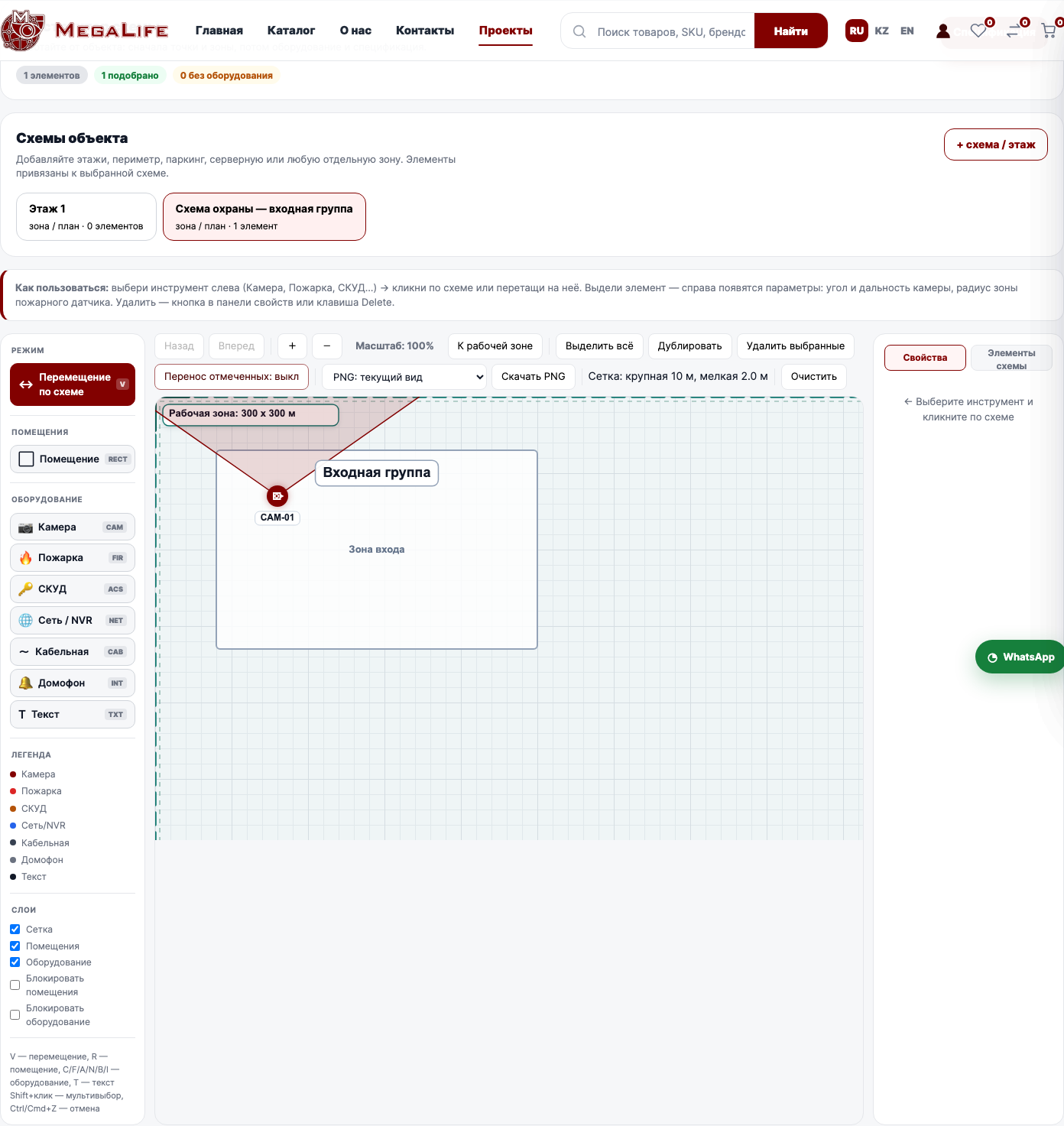
A plan or zone showing what is installed and where.
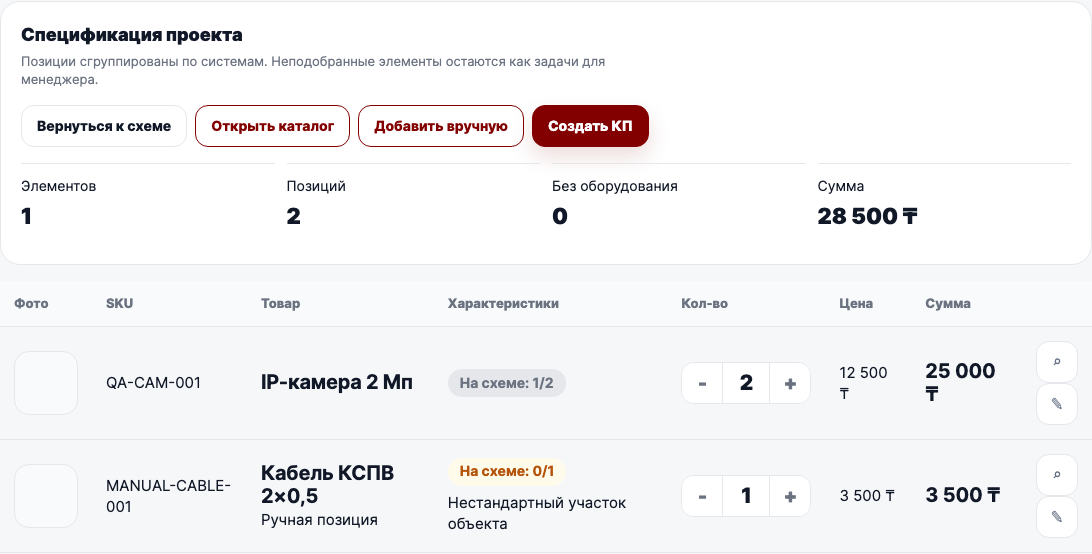
Equipment list, quantities, prices, and total.
A specification snapshot for a particular client. Each creation makes a new version.
The screenshots were taken in an isolated Docker QA environment using the same Projects interface.
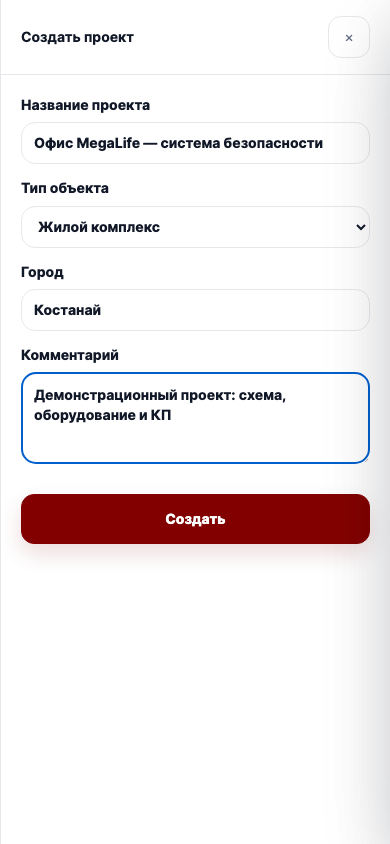
Click “Create project”. The name, object type, and city help you find the project and understand its context. Use the note for the task or special conditions.
The Object tab stores the initial data and the scheme list. Edit the passport here or go straight to a scheme. This is the context area, not the product selection area.
The Specification contains the complete list and total. “Open catalog” adds real products, while “Add manually” is for custom items. Change quantities directly in the table.
Create a floor or zone, choose a tool on the left, and place an element on the work area. A camera or another element can be linked to a catalog product.
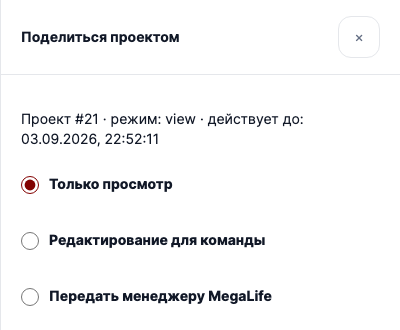
“Share project” creates a link with a selected mode. View-only suits a client, editing suits the team, and transferring to MegaLife manager requests help.
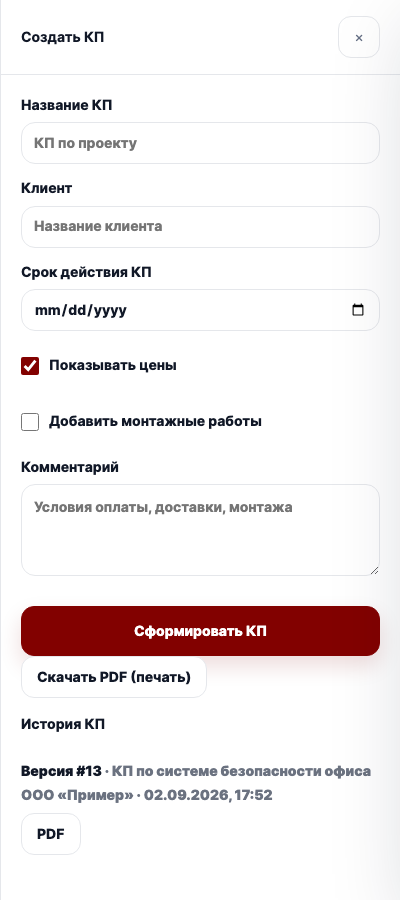
Click “Review and create a quote”. Enter the client if known, validity period, whether prices should be shown, whether installation is needed, and any extra conditions.
The stage shows where the project is and who needs to act next.
Use the “Next step” block in the header of the open project.
Open the project and choose a path. If you need a placement plan, create a scheme. If you only need an equipment list and quote, go straight to Specification.
No. A scheme is for placing cameras, sensors, access control, network, and cable elements visually. You can create the specification and quote without one.
Select an element and link a catalog product, or open Specification and add items. After checking the list, click “Review and create a quote”.
The plan contains a conceptual element without a specific product. Open the scheme, select it, and find a product in the catalog. If needed, add a manual item in Specification.
A catalog product has a card, SKU, and price. A manual item is for cable, work, or equipment not yet in the catalog; you enter its name, quantity, and price yourself.
Open Specification and click “Review and create a quote”. Enter the client, validity period, and price settings, then click “Create quote”. The new version appears in history.
The system saves a snapshot of the current specification: items, quantities, and calculation. Later project changes do not rewrite an existing quote version.
In the quote form, click “PDF (print)” for the latest version or for a version in history. In the system print dialog choose “Save as PDF”.
It creates a link with limited access. You can allow viewing, editing for the team, or transfer the project to a MegaLife manager. The link lifetime is set separately.
Use the “Next step” block in the project header. It leads to the quote when the specification is ready, to the scheme when elements have no product, and to history after a quote is created.
You do not have to fill everything in at once. Projects saves the work and the header hint shows the nearest action.